
How to Perform Night Audit in eZee Front Desk
- Introduction to Night Audit
- Night audit is mandatory for hotels to control daily transactions.
- It checks reservation discrepancies, posts charges, generates folios, updates housekeeping, and closes cash counters.
- The active working date rolls over to the next day while locking the current day's accounts.
- Night audit concludes with reports summarizing daily transactions and collections.
- Starting the Night Audit
- To access “Night Audit” click on the
 on the right top corner of the application.
 - Click on "Night Audit" to begin the process.
- To access “Night Audit” click on the

- The first step explains what a night audit is and its importance.

- Handling Pending Bookings
- Identifies bookings that were expected to arrive but have not checked in.
- Possible scenarios:
- Guest canceled but not updated in the system.
- Guest did not show up.
- Actions:
- Cancel the booking or mark it as "No Show" to proceed.
- Select booking and apply "Express Cancel" or "Express No-Show" options.


- Handling Reservations with Assigned Rooms
- Similar to the previous step but focuses on reservations where rooms are allocated.
- Take the same actions (Cancel, No-Show, or Void if mistaken entry).

- Review Room Tariffs
- Displays room rates:
- RAC rate (predefined) vs. offered rate.
- Positive variation means a higher rate than RAC; negative means a lower rate.
- Night auditor can modify incorrect rates.
- Option to print tariff details.
- Displays room rates:

Print Out

- Verify Extra Charges
- Auditor cross-checks extra charges against physical vouchers.
- If charges are missing, they can be posted later.
- Modify incorrect extra charges if needed.
- Option to print extra charge details.

- Review Payments Received & Made
- Displays details of payments received and made.
- Negative values indicate payments made by the hotel.
- Payments from restaurant transactions can be checked separately.

- Managing Check-Outs
- Lists guests who are supposed to check out but haven't.
- Actions:
- If physically checked out, select "Check Out."
- If balance is due, close night audit and complete the check-out process.
- If stay is extended, select "Tariff Post" to update departure date.

- Handling Due-Out Guests
- Guests who were supposed to check out but haven’t, and tariff isn't posted.
- If guest is still in-house, select "Tariff Post" to extend the stay.
- If the new departure date isn't the next day, update manually.

- Processing Inclusions
- Charges (e.g., pick-up/drop-off fees) set to post automatically.
- System allows posting inclusions during night audit.
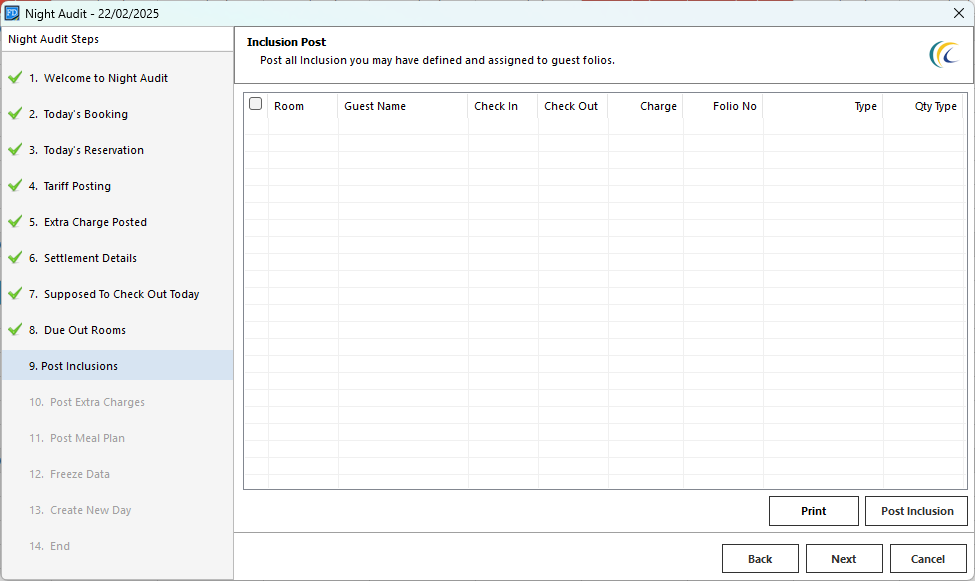
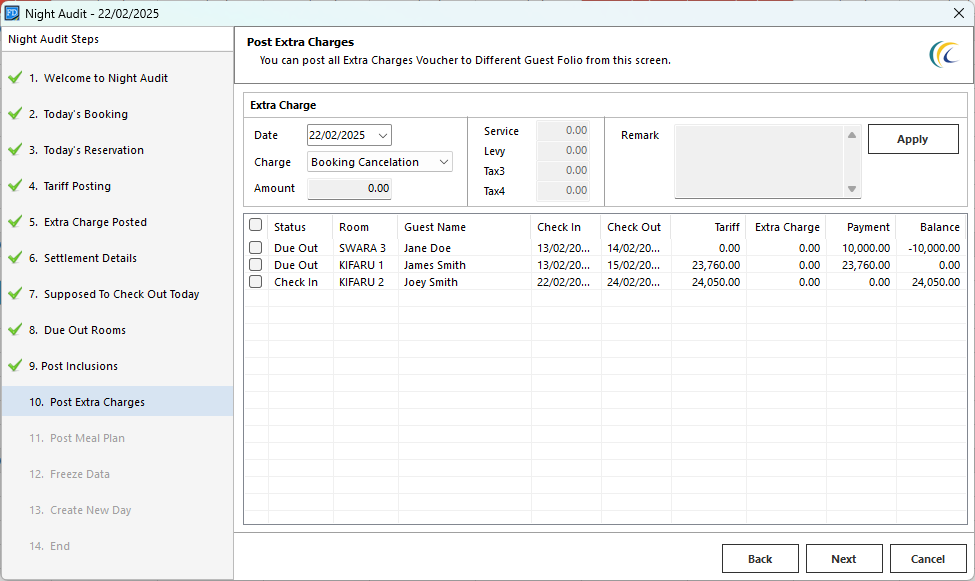
- Posting Extra Charges
- If extra charges were missed earlier, they can be posted at this stage.
- Select room, extra charge, and apply.
- Posting Meal Plan Charges
- Displays rooms with meal plans requiring charges to be posted.
- If applicable, select "Post Meal Plan Charges."

- Freezing Data & Completing Night Audit
- Freezes data up to the current day to prevent unauthorized edits.
- Moves the software's working date to the next day.
- Night audit completion logs out the user.
- User must log in again to access the system.

- Generating Night Audit Reports
- Night audit report summarizes:
- Check-ins and check-outs.
- Restaurant sales.
- Payment summaries from front desk and restaurant.
- Reports can be accessed post-audit.


Watch the video below on how to carry out a Night Audit