
How to setup and use Laundry Services
- Item Category
- ‘Laundry’ modulehas been designedto manage your Laundry operations effectively. We can manage laundry operations for both guest and for property by the help of this module.
- This sectionallows us to create the services that are offeredin a Laundry. The basic services can be Washing, Ironing, and Dry Cleaning.


- New: New optionallows us to create a new service. If we clickon the button new we will get ascreen similar to the one given below:
- Alias: Alias can be termed as a short name to refer the main item.Like in this case, ‘was’ is the short name used for washing.
- Mark as default: If we check this option then this service will be applied for all the laundry items by default. For exampleif we are creating a service washingand it is understood that washing is compulsory and almost all clothes that come for laundry needs washing then we can set it as default.
- Name: Here we define the name of the laundryservice.
- Description: Here we can give a small description of the service.Example: We wash with hands at a specific temperature.
- Image: This optionallows us to put a small image of the operation.
- Edit: Edit option allows you to modify details of previously created Laundry service. Highlightthe service and edit.
- Delete: Deleteoption allows you to deletepreviously created Laundryservice. Highlight the serviceand delete.
- Laundry Items
- This sectionlets us definethe list of itemsthat comes for laundry, like shirts, trousers, bed sheets and many more.

- New Item
- New optionallows us to create a new item. On clickingit, you will get a screen similarto the one given below.

- Describing the fields given in the above screen:
- Alias: Alias can be termedas a short name to refer the main item. Like in this case, ‘ss’ definesshort shirt.
- Name: Here you can definethe name of laundry item.
- Code: Code is used to give internalitem of the code.
- Category: Category defined the type of item, like we can say above item short shirt is of a type shirt. Visibility: Visibility allowsus to specify that this item is for Guest Laundry or Hotel Laundryor for both. Image: This option allows us to put a small image of the operation.
- Description: This option allowsus to put a description of the laundryitem we are creating.
- Service Information:
- This is a very important block of this module as it allows you to define the cost for the items that are defined. For each and everyservice, cost is mentioned in two blocksone is cost to guestand other is cost to Hotel.
- Item Category
- Item Category allows us to createitem categories. On clicking it, you will get a screen similar to the one given below:

- New: New optionallows us to create a new category. On clickingit, you will get a screen similarto the one given below:

- Describing the fields given in the above screen:
- Alias: Alias can be termed as a short name to refer the main item. Like in this case, ‘tr’ defines trousers.
- Name: Here you define the name of category.
- Description: This optionallows us to put a description of the categorybeing created.
- Image: This optionallows us to put a small image of the operation.
- Edit: Edit optionallows you to modify detailsof previously createdItem Category. Highlight the Item category and edit.
- Delete: Delete optionallows you to delete previously created Item Category. Highlight the Item Category and delete.
- Package Type
- ‘Return GarmentsIn' allows you to define the ways in which you will return clothes to guest. If you click on the button you will get a screen similar to the one given below:

- New: This optionallows you to create a new category. Clicking this, you will get a screen similar to the one given below:

- Describing the fields given in the above screen:
- Alias: Alias can be termed as a short name to refer the main item.Like in this case ‘tr’ defines trousers. Mark as default: If we check this option then this service will be applied for all the laundry items by default. For Example:if we are creating bag and it is understood that bag will be the preferred mode to return clothes to guest then we can set it as default.
- Name: Here we define the name of category.
- Image: This option allowsus to put a small image of the operation.
- Edit: Edit optionallows you to modify detailsof previously createdHotel Service. Highlight the Hotel Service and hit on edit button.
- Delete: Delete optionallows you to delete previously created Hotel Service.Highlight the Hotel Service and delete.
- Hotel Services
- Hotel Servicesallows you to define the special servicesoffered and also the extra price relatedto that service. Clicking it, you will get a screen similar to the one given below:

- New: New option allows you to create a new category. Clicking it, you will get a screen similar to the one given below:

- Describing the fields given in the above screen:
- Alias: Alias can be termed as a short name to refer the main item. Like in this case,‘hd’ defines half day. Mark as default: If we check this option, then this service will be applied for all the laundry items by default. For example, if we are creating services and it is understood that normal will be the preferred service then we can set it as the default.
- Name: Here, we define the name of the category.
- Extra Charge: Considering this as a special service, what will be the extra charge we can define the value in percent.
- Image: This option allows us to put a small image of the operation.
- Edit: Edit option allows you to modify details of previously created Hotel Service. Highlight the Hotel Service and hit on edit button.
Delete: Delete option allows you to delete previously created Hotel Service. Highlight the Hotel Service and delete.
Transactions
- Guest Laundry
- This is the operation by which you create guest laundry. You need to select the room, the date and time and then the items they have given for laundry.


- Describing the fields given in the above screen:
- Laundry #: This option allows you to enter a number which will be a unique number.If you don’t enter a number, system will pick it automatically.
- Room: You can select the room number from the drop down for which you want to enter the laundry details. On selecting a room number the guest name will come automatic.
- Guest Name: You can select the guest name either from scroll down list or from search
 icon.
icon. - Date: Date picks the default working date of the software;we can click on the arrow given at the right to the date to change the date.
- Time: Time picks the current system time; we can click on the up down arrow given at the right to the time to change the time.
- Laundry Service: Select the laundry service that you want to offer to the guest.If any default service is selected then it will be applied automatically.
- Hotel Service: Select the hotel service that you want to offer to the guest, if any default service is selected then it will be applied automatically.
- Return GarmentsIn: Select the way by which you want to return garments. If any default service is selected then it will be applied automatically.
- Laundry Items: Select the laundry item that the guest has given for laundry. It is branched in categories, so select the concerned category to find the items within it.
- Search: Search option allows tracking the items quickly. Someone who is new to the system can use this feature to track the items quickly.
Note: After you select the laundry item, it will get added to the list, which is given at middle right section. Miscellaneous: On clicking this button, you will see the extra setting related to fabric, pattern and Color. On clicking it, you will get image similar to the one given below.

Note: After you are done with the entire above operation, you can click on ‘Save ’ to save the operation.
- Hotel Laundry
- This is the operation by which you can manage hotel laundry. You need to select the date and time and then the items they have given for laundry.


- Describing the fields given in the above screen:
- Laundry #: This option allows you to enter a number which will be a unique number. If you do not enter a number, the system will pick it automatically.
- Date: Date picksthe default working date of the software; you can click on the arrow given at the right to the date to change the date.
- Laundry Service: Select the laundry service that you want to offer. If any default service is selected, then it will be applied automatically.
- Hotel Service: Select the hotel service that you want to offer. If any default service is selected, then it will be applied automatically.
- Return GarmentsIn: Select the way you want to returngarments. If any default service is selected, then it will be applied automatically.
- Laundry Items: Select the laundry item that is given for laundry. It is branched in categories, so select the concerned category to find the items within it.
- Search: Search option allows tracking the items quickly. Someone who is new to the system can use this feature to track the items quickly.
- Note: After you select the laundry item, it will get added to the list, which is given at middle right section.
- Miscellaneous: On clicking this button you will see the extra settings related to fabric, pattern and Color. On clicking on it you will get an image similar to the one given below:

- Note: After you are done with the entire above operation, you can click ‘Save’ to save the operation.
- Guest Laundry List
- On clicking this option, you can see the list of items that have been sent for laundry by guests.

- Describing the fields given in the above screen:
- Bill Options: Select this option to preview or print the selected Guest Laundry bill from the list. Payments: Select this option to make payments. On clicking it, you will get an image similar to the one given below.


- Describing the fields given in the above screen:
- Generate Report: Select this option if you want a report for the payment done.
- Direct Payment: Select this option if you want to collect payment immediately after the item is returned to the guest. It will give you another screen where you can select the payment type and accept the payment. You can also post payment to city ledger by using this option as the second tab is about city ledger. On clicking it, you will get an image similar to the one given below.


- Post to Room: Select this option if you want the amount to be posted to the room. On clicking it, you will get an image similar to the one given below.

- Edit: Select this option if you want to edit any payments made.
- Void: Select this option if you want to void any payments.
- New: Select this option if you want to add a new item to the list.It will take you to the guest laundry operation.
- Edit: Select this option if you want to edit any laundry operation made earlier.
- Void: Select this option if you want to void any laundry operation made earlier. You will need to give a reason to void the item.
Hotel LaundryList
- On clicking this option, you can see the list of items that have been sent for laundry by hotel.

- Describing the fields given in the above screen:
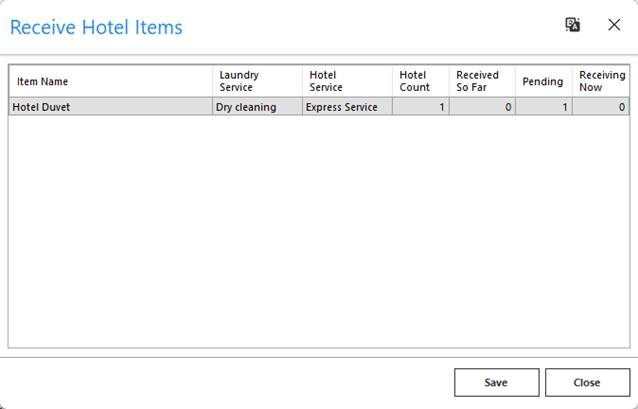
- Receive All: Select this option if you want the list of all items to be received for laundry operation in one click.
- Receive: Select this option if you want individual items to be received for the laundry operation.

- New: Select this option if you want to add a new item. It will take you to the hotel laundry operation.
- Edit: Select this option if you want to edit a previously defined hotel laundry item.
- Void: Select this option if you want to void a previously defined hotel laundry item. You will need to give a reason to void the item.
Undelivered Guest Item List
- On clicking this option, you can see the list of items that have not been delivered back to the guest.


- Deliver All: Select this option if you want to deliver all guest laundry at one click of a button.
- Receive All: Select this option if you want to receive all guest laundry at one click of a button.
- Deliver: Select this option if you want to deliver guest laundry individually. You will need to select the item from the list and then deliver it.
- Receive: Select this option if you want to receive guest laundry individually. You will need to select the item from the list and then receive it.
Daily Linen
- Use this option if you want to enter the daily linen details.
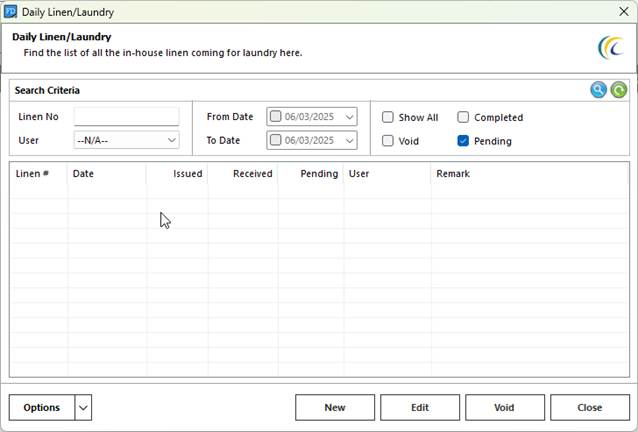

- Describing the fields given in the above screen:
- Linen Sheet No: This option allows you to enter a number which will be a unique number; if you don’t enter a number, the system will pick it automatically.
- Date: Date picks the default working date of the software; you can click on the arrow given at the right to the date to change the date.
- Populate all issues on given date: You can use this option to see all items that are posted on current date. Laundry Items: Select the laundry item that is given for linen. It is branched in categories, so select the concerned category to find the items within it.
- Search: The search option allows tracking the items quickly. Someone who is new to the system can use this feature to track the items quickly.
- Note: After you select the laundry item,it will get added to the list, which is given at middle right section.
Daily Linen List
- On clickingthis option you can see the list of linen and also receive them.

- Describing the fields given in the above screen:
- Receive All: Select this option if you want to receive all guest laundry at one click of a button.
- Receive: Select this option if you want to receive guest laundry individually. You will need to select the item from the list and then receive it.
- Direct Linen: Clicking this will open the screen of ‘Daily Linen’.For the procedure, refer to the ‘Daily Linen’ section of the manual.
- New: Select this option if you want to add new items for linen.
- Edit: Select this option if you want to edit a previously defined linen item.
- Void: Select this option if you want to void a previously defined linen item. You will need to give a reason to void the item.